
I Used This Free App to Moodboard My Dining Room, and I’d Do It Again (and Again!)
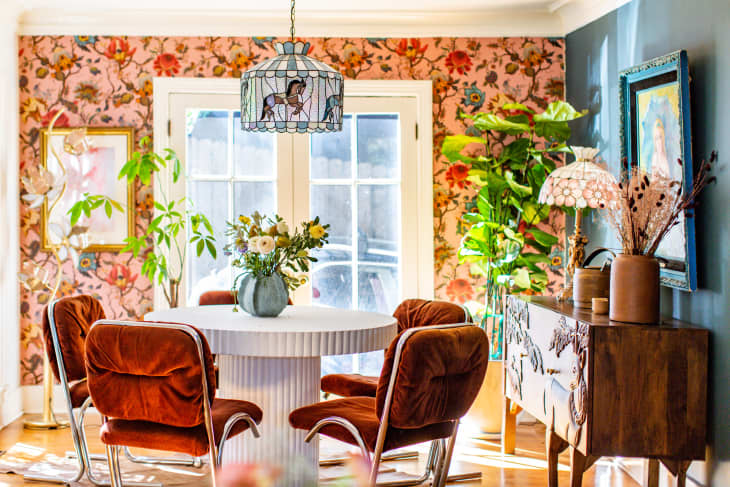
I bought a 1928 Craftsman meets neo-Colonial home about two years ago, and I’m in the process of redoing it room by room. The latest area on my to-do list? A fairly large but still cozy dining room, which is the primary place I eat all of my meals, since the galley kitchen doesn’t have space for a table or even a tiny breakfast nook.
The nice thing about the dining room is that it still manages to feel bright and airy, since it has two fairly large windows, and it’s connected to my living room with an open doorway. Because it gets great light, my mind immediately went to the William Morris Pimpernel wallpaper I’d found at a designer sample sale — and dark green painted woodwork — which I think could be pulled off here all things considered.

Even with all the talk of AI interior design, I still find myself wanting to sit down to creatively moodboard my personal design projects from scratch. And while I love an old-school pinboard or tray full of physical samples and vibey ephemera as much as the next design enthusiast, I’ve found digital programs to be the best use of my time and energy, since contractors are visual — and you can pass these boards along to them (with floor plans or dimensions) to get your job done accurately. Which brings me to my latest moodboarding tool of choice, the (free!) Adobe Photoshop iPhone app.
Adobe Photoshop wasn’t on my bingo card for apps I’d think to try for moodboarding. I had used a free version of Morpholio before, and it was decent for my purposes (the paid version, I’m sure, is better). And some people have had success with Spoak’s tool, but that requires a subscription.
A little over a month ago, though, Adobe released its all-new free Photoshop app for iPhone with mobile creators in mind, so it would be that much easier for people to post photos and create original art on the fly. After a quick demo with an artist who uses the app to create artful collages, I thought, why not try Photoshop Mobile for an interior design project?

What Is Photoshop for iPhone?
I’m no Photoshop pro. I never used the program to edit photos or do anything, really — but I’ve always wanted to. Having this program accessible for free (with much of its functionality not behind a paywall, but more on that later) on a mobile touch screen gave me all the confidence I needed to try it.
Photoshop on iPhone isn’t really meant to replace or compete with Photoshop for desktop. It’s aimed at casual and creative image editing and designing visuals from your phone or iPad. The mobile version allows you to create content from photos by adjusting, changing, layering, painting/drawing on, and customizing images. You can even use the app’s free stock photos to augment what’s on your own camera roll and open your files in Adobe Express for free to animate them.
I also don’t think my board is pro designer-level or perfect. But in just two hours of playing with the app on my iPad, I was able to go from the first drawing you see above, where I was just placing photos of things I was contemplating for the room in a loose pin board-style arrangement — and dealing with wildly different scales and backgrounds — to the moodboard you see below, which roughly approximates the way one room of the wall would look with furniture placed around it.

How I Used Photoshop for iPhone to Moodboard My Dining Room
Photoshop is known for its “layers,” and I found the unlimited layering Photoshop Mobile offers to be super useful to moodboarding in particular. I started my board off with a digital swatch of the William Morris Pimpernel wallpaper, and by duplicating that “layer” four times and lining each “layer” up, I was able to approximate what the pattern repeat would look like on a wall. It’s not exactly to scale, of course, but it’s helpful to get a sense of it.
The same thing helped me work out my ideas on wall coverings. I know I want to add some kind of architectural image to the walls, but I’m torn between picture frame molding, beadboard, and board and batten. To home my vision here, I found a digital image of a dark green board and batten wall treatment on a DIY blogger’s site and did the same thing, duplicating and lining up the layers. I liked that option the best.
Again, the moodboard is not a perfect representation of what the carpentry will end up looking like exactly, but it gives me a good idea of the vibe. It actually showed me that dark green is definitely the color I’ll want to pull out of the wallpaper because I used Photoshop to change the color of the board and batten to light blue, and it wasn’t working. Photoshop’s ability to change an image’s color allows you to test color palettes very easily, and that’s great when you aren’t sure what direction you want to go for your room’s color scheme.
Being able to delete distracting backgrounds from online product page photos (which I did for the wooden Arhaus Kensington Dining Table I currently have) also allows you to truly see what a piece might look like against your chosen paint color or backdrop. The fact that you can bring certain layers to the front — like I did to place the table over the wallpaper and board and batten combo, and the West Elm Deco Rug over an image of my actual wood floors — really makes this possible.
I will say, though, that I tried to also delete the background from the Mitzi Havana Chandelier and my DIY dining room chairs, but both were too irregular in shape for the function to work without cutting part of the pieces out. However, I loved that you can add photos of vintage pieces, like I did with my actual dining chairs. It’s great to be able to “try on” a vintage piece in a room from an IRL camera roll snapshot or online photo. And had I not known what fabric I wanted to go with here, I could have “tried” different materials on by using layers and hiding the ones I decided against from the final board.
Would I Use Photoshop for iPhone to Moodboard Again?
All in all, I’d 100% use Photoshop Mobile to moodboard again. It’s a great tool for getting the colors and concepts of a room in line, and this document could absolutely serve as a big picture jumping-off point for a contractor. You could also use the app to map different layouts out.
I found it to be easy to learn on the fly and intuitive, but I think the more you work with layering and explore the app’s tools, the better your moodboards — and even rooms — might get through experimentation. And some good news: An Android version should be coming later this year!